
Change Your Google Account Profile Picture
This guide provides a straightforward process for updating your Google Account profile picture, enhancing your online presence and personal branding. By following these simple steps, you can easily upload a new image or take a fresh photo directly from your device. A personalized profile picture can help you stand out in communications and make your account feel more authentic. Whether for professional or personal use, this guide ensures a quick and hassle-free update.
1. Go to myaccount.google.com

2. Click "Go to Google Account"
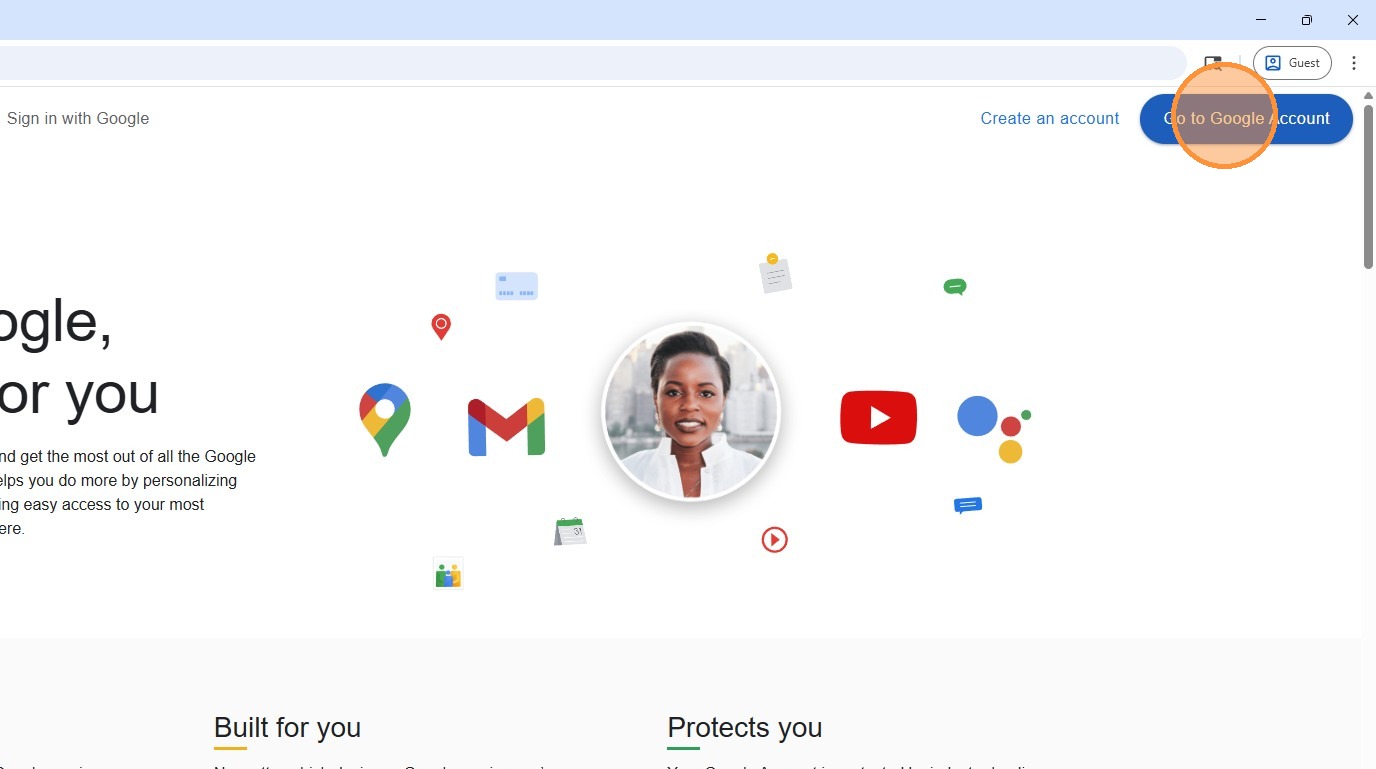
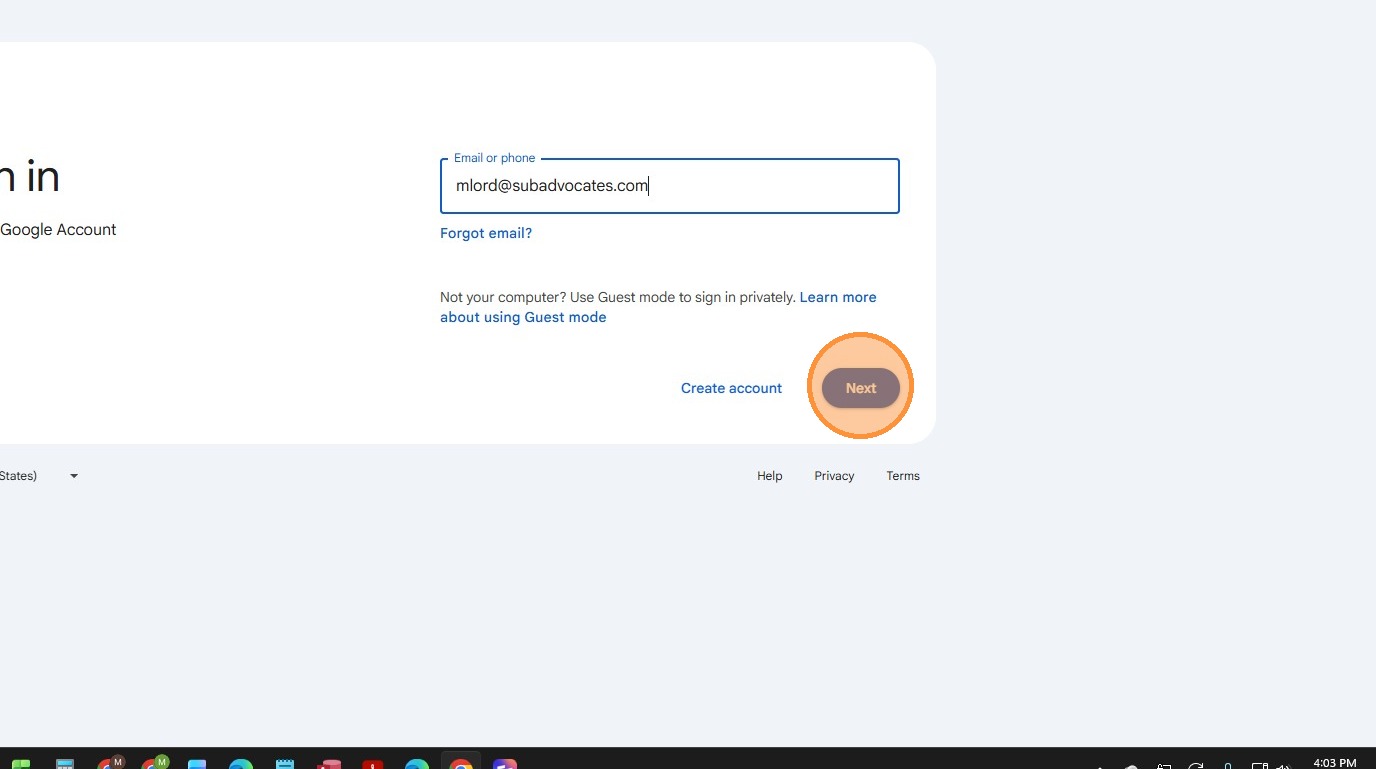
3. Enter your email address, then click "Next"
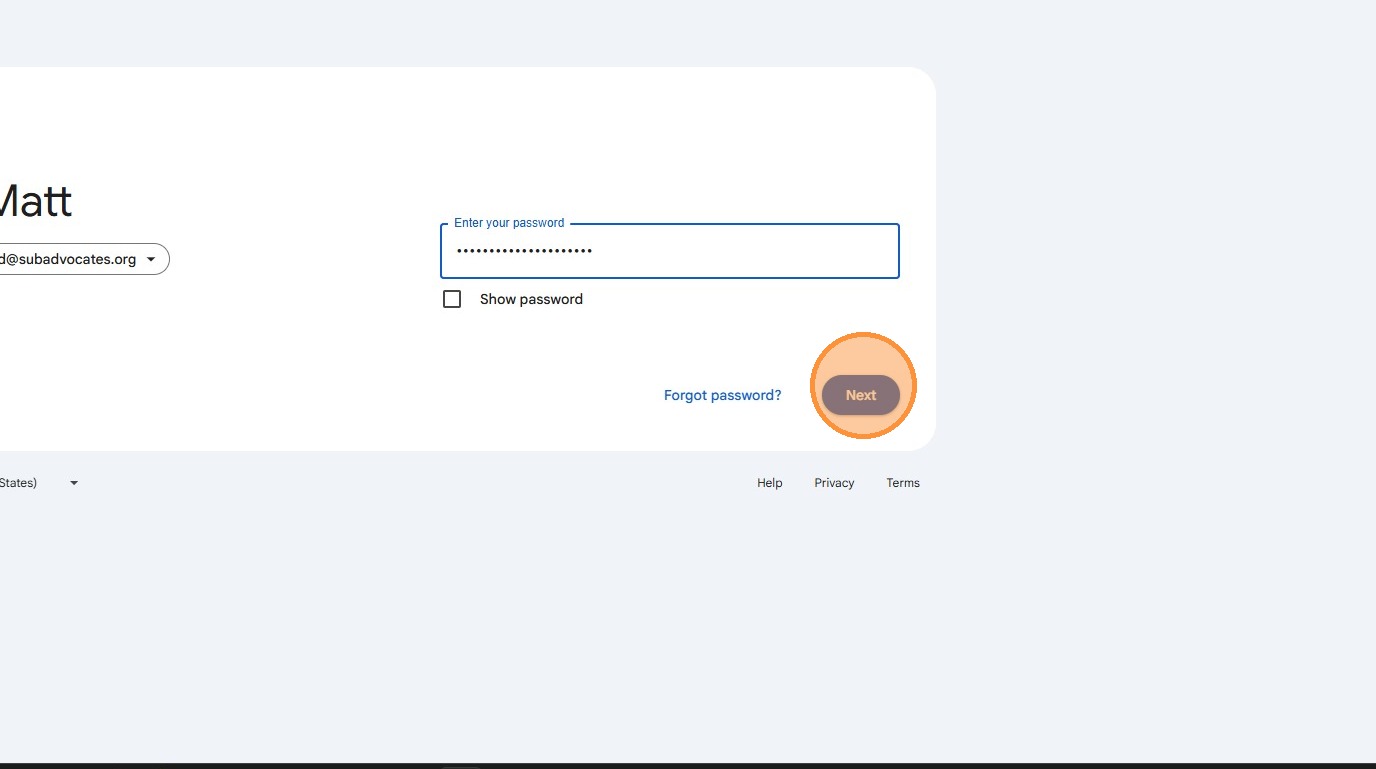
4. Enter your password, then click "Next"
5. Click "Personal info"
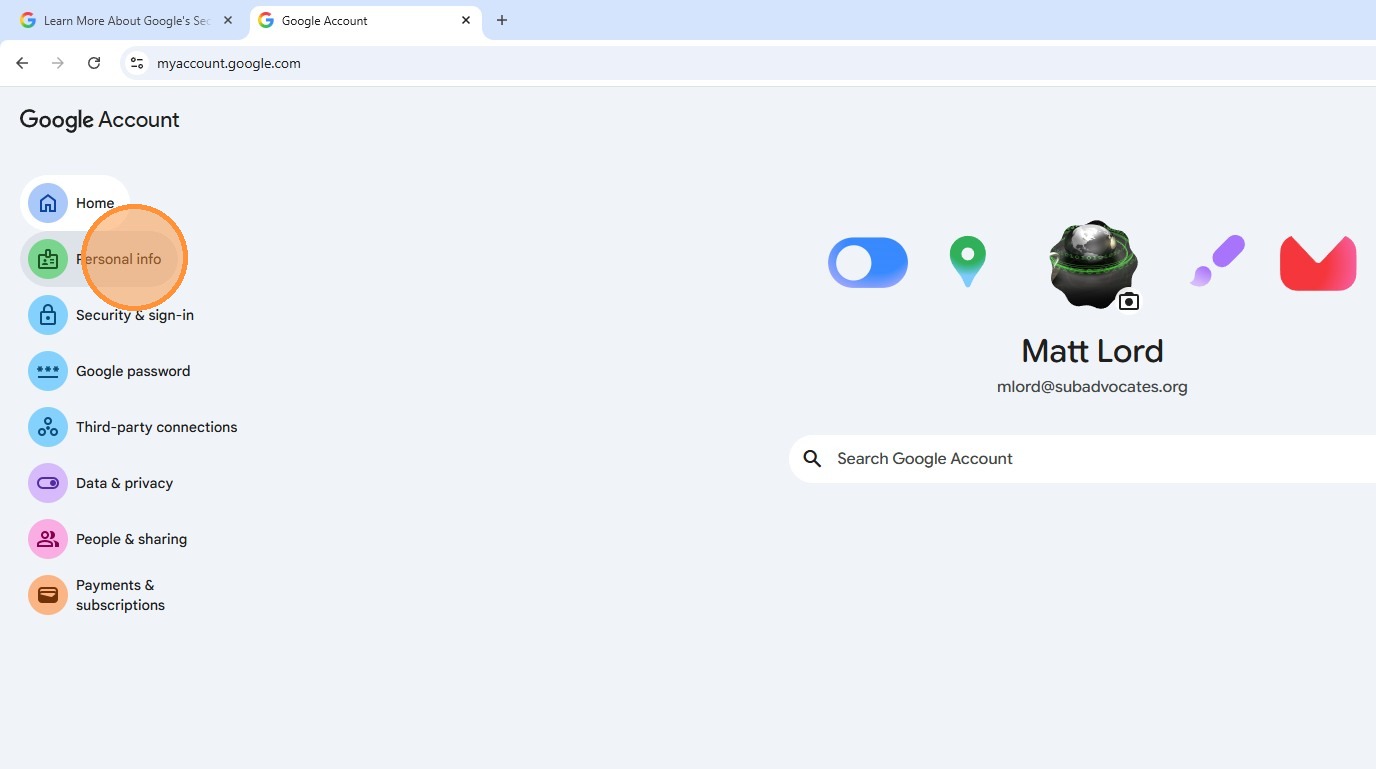
6. Click "Profile picture"
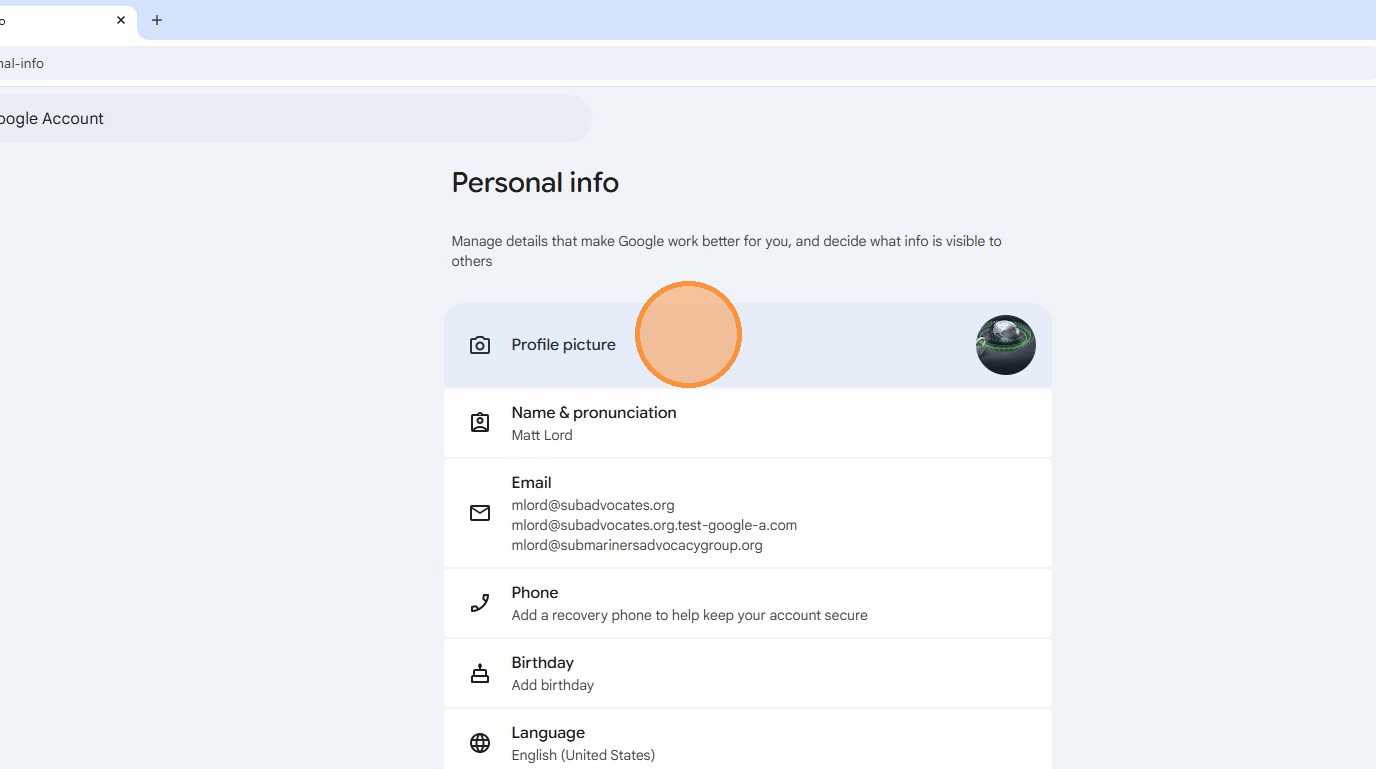
7. Click "Upload from Device"
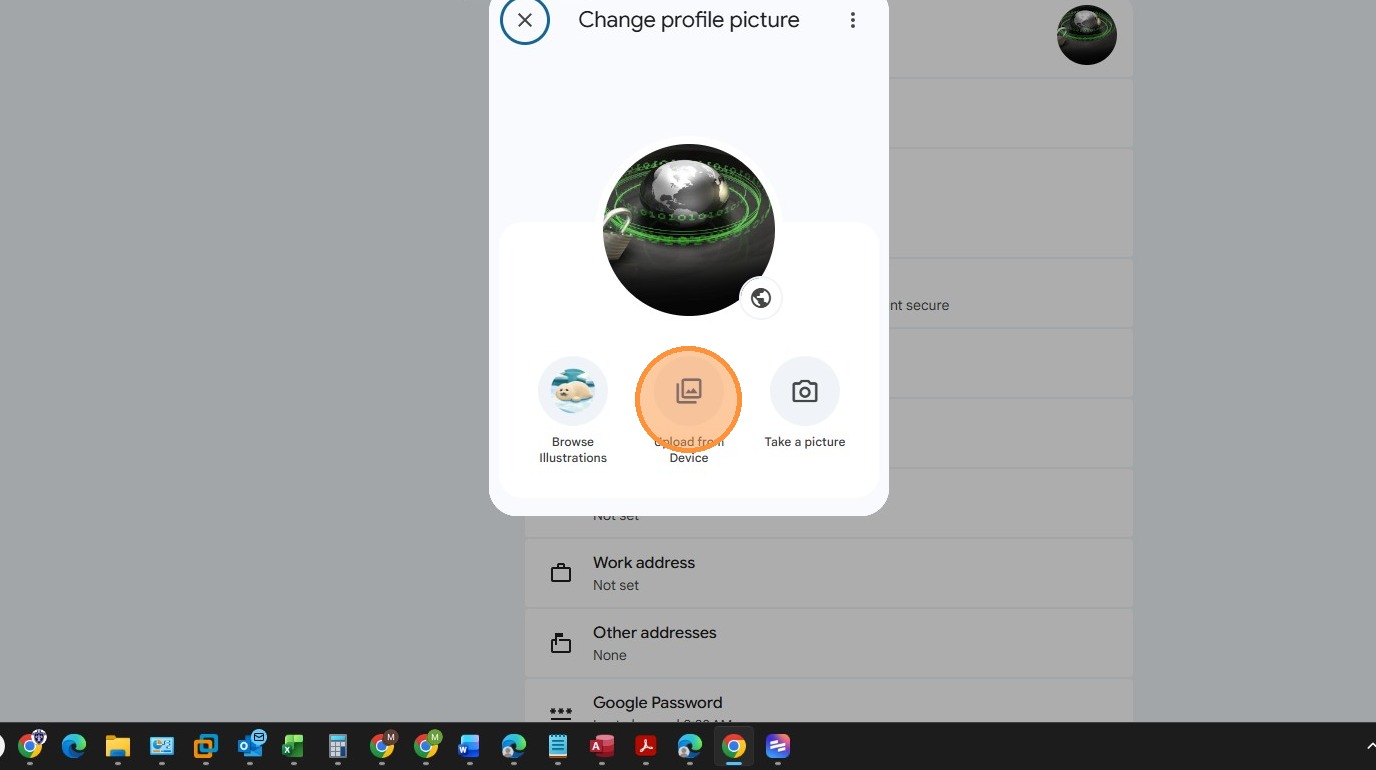
8. Select the picture you want to use
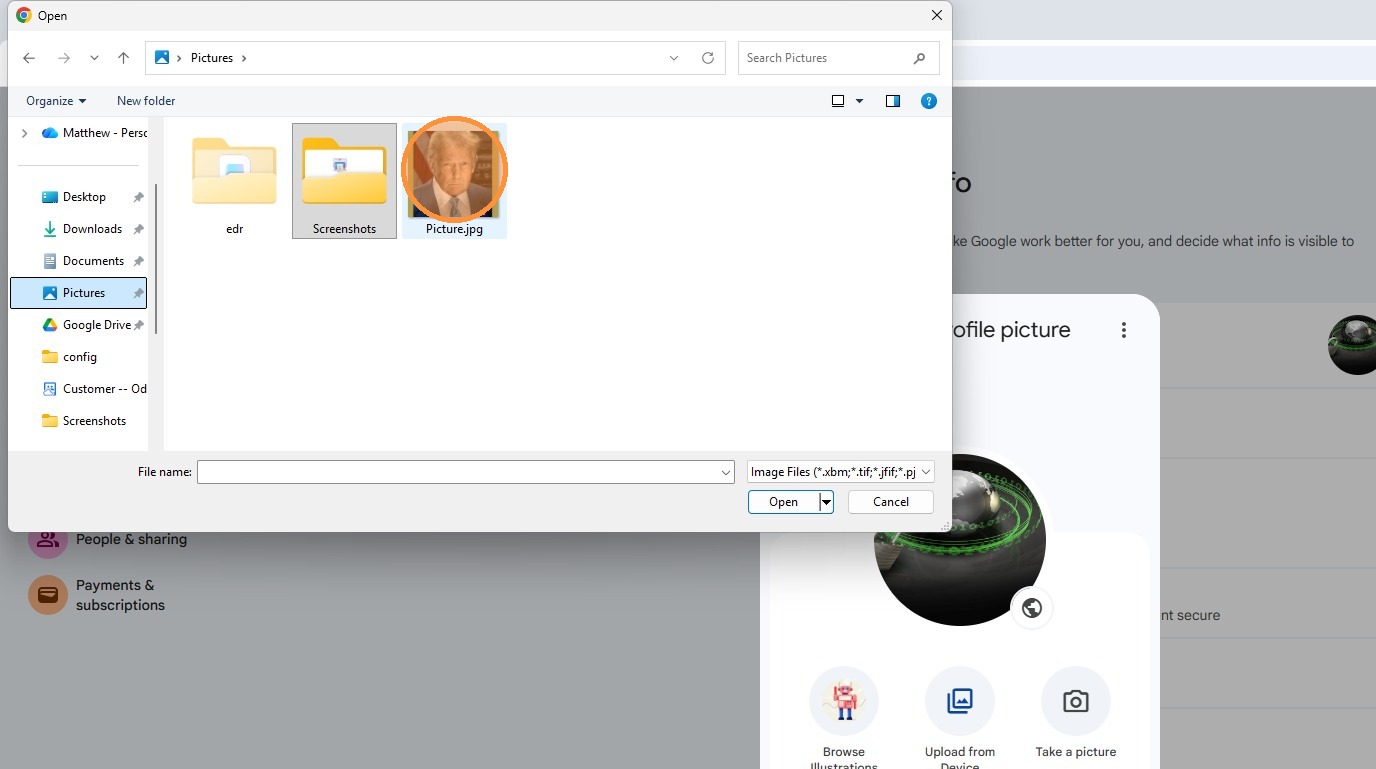
9. Click "Open"
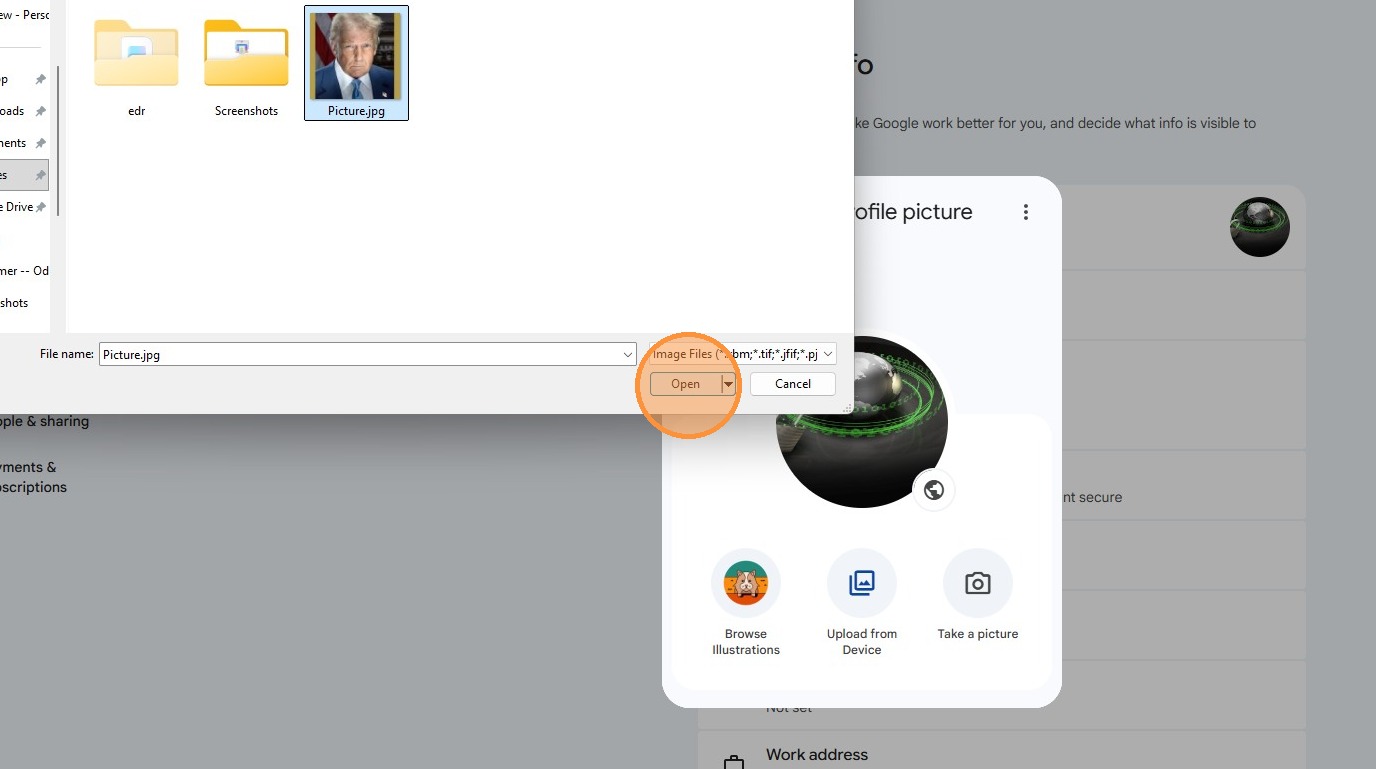
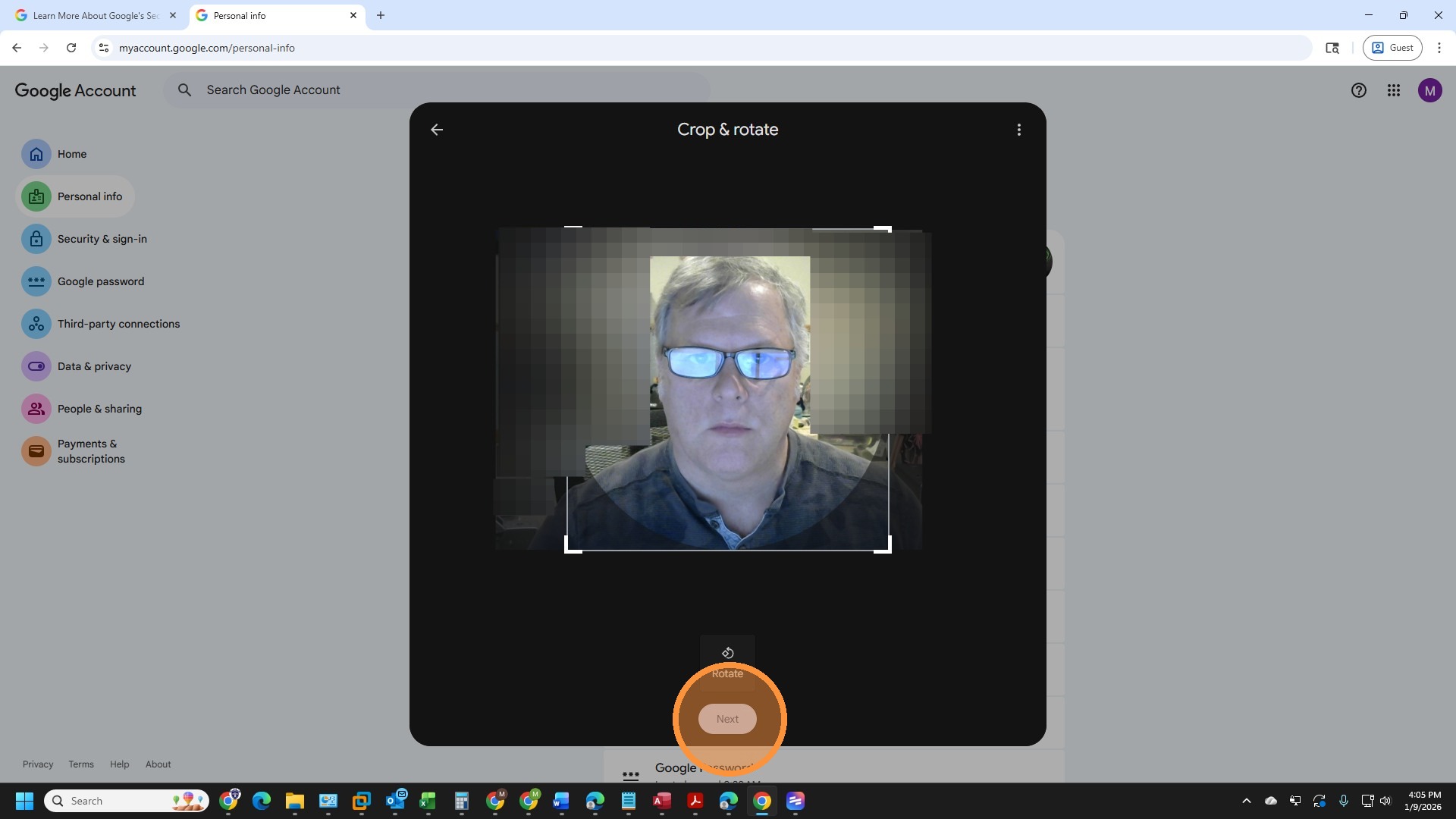
10. Click "Next"
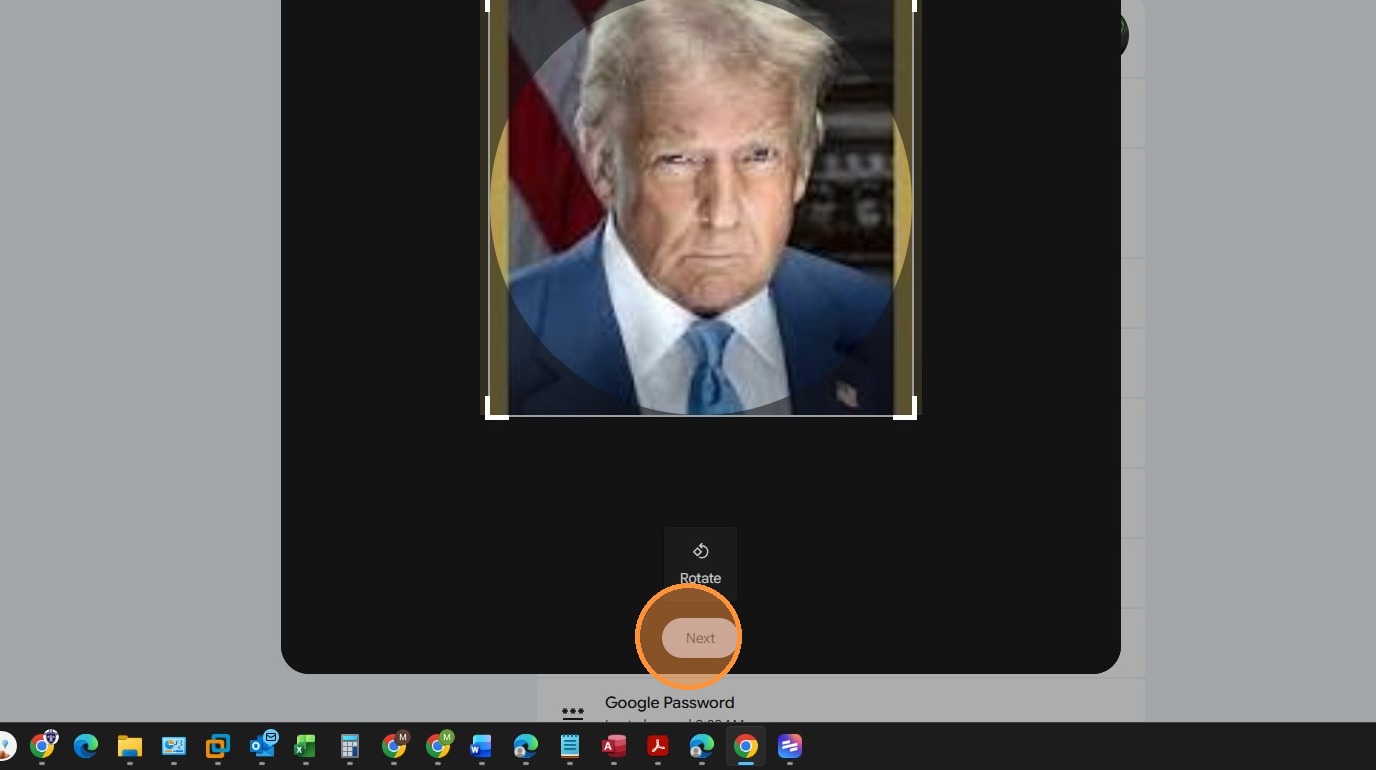
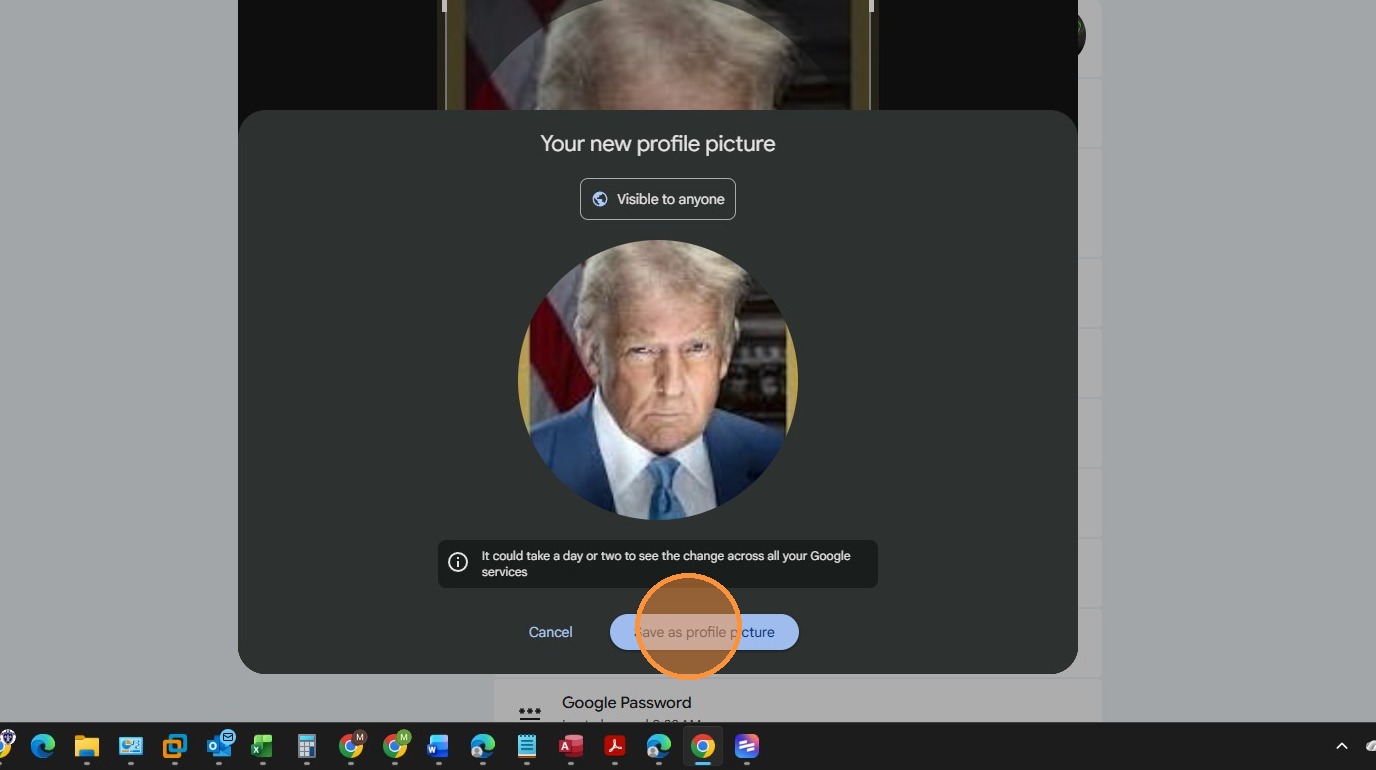
11. Click "Save as profile picture"
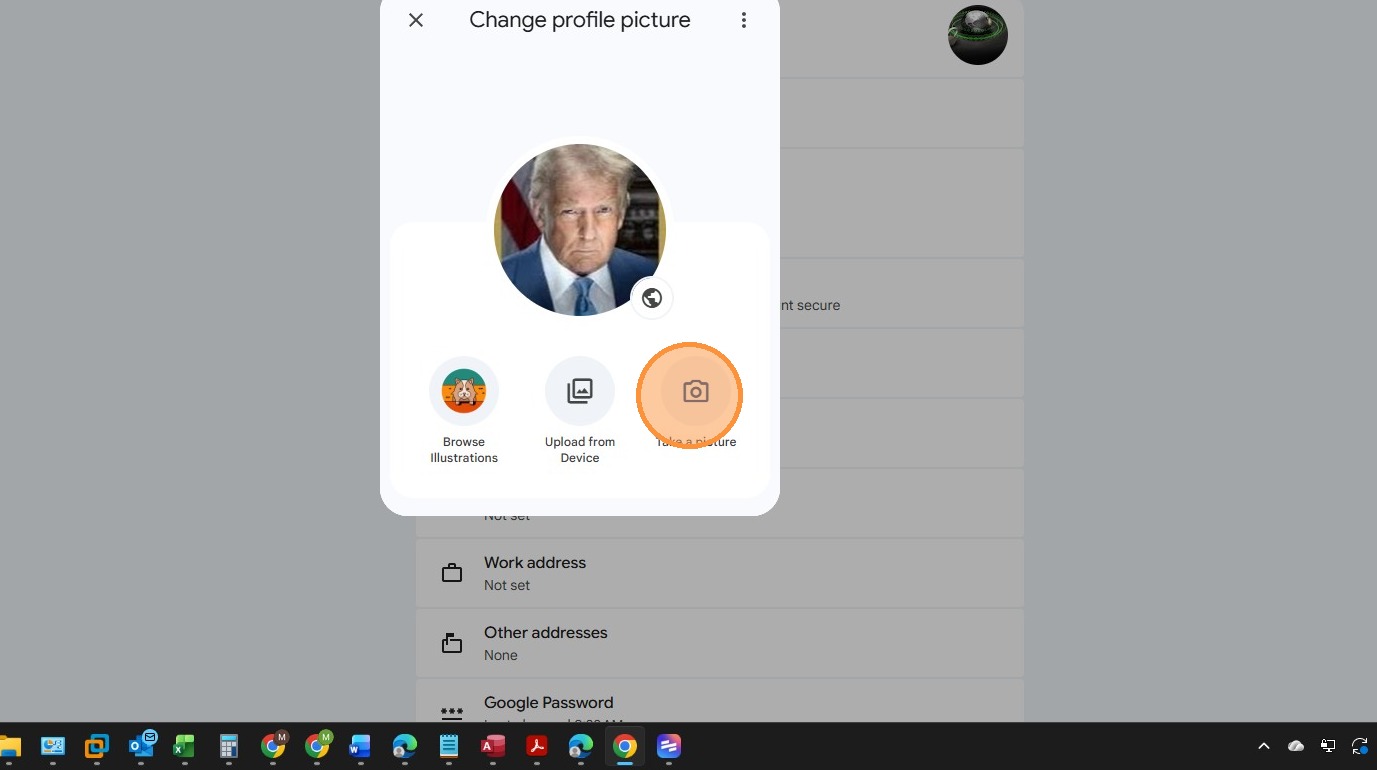
12. You can also take a picture using your device's camera.
13. Click "Take a picture"
14. Click "Allow while visiting the site"
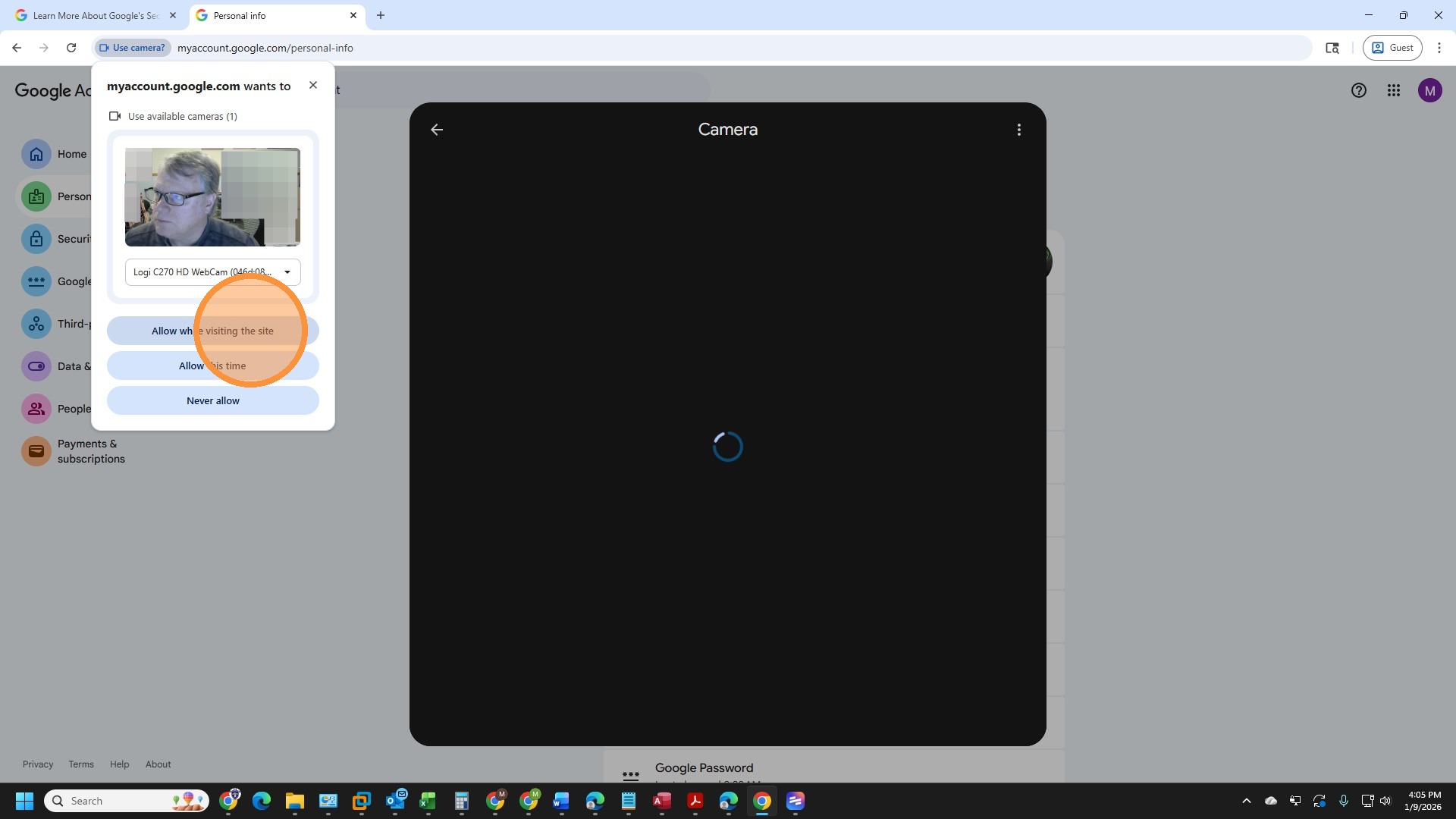
15. Click anywhere on the screen to take the picture
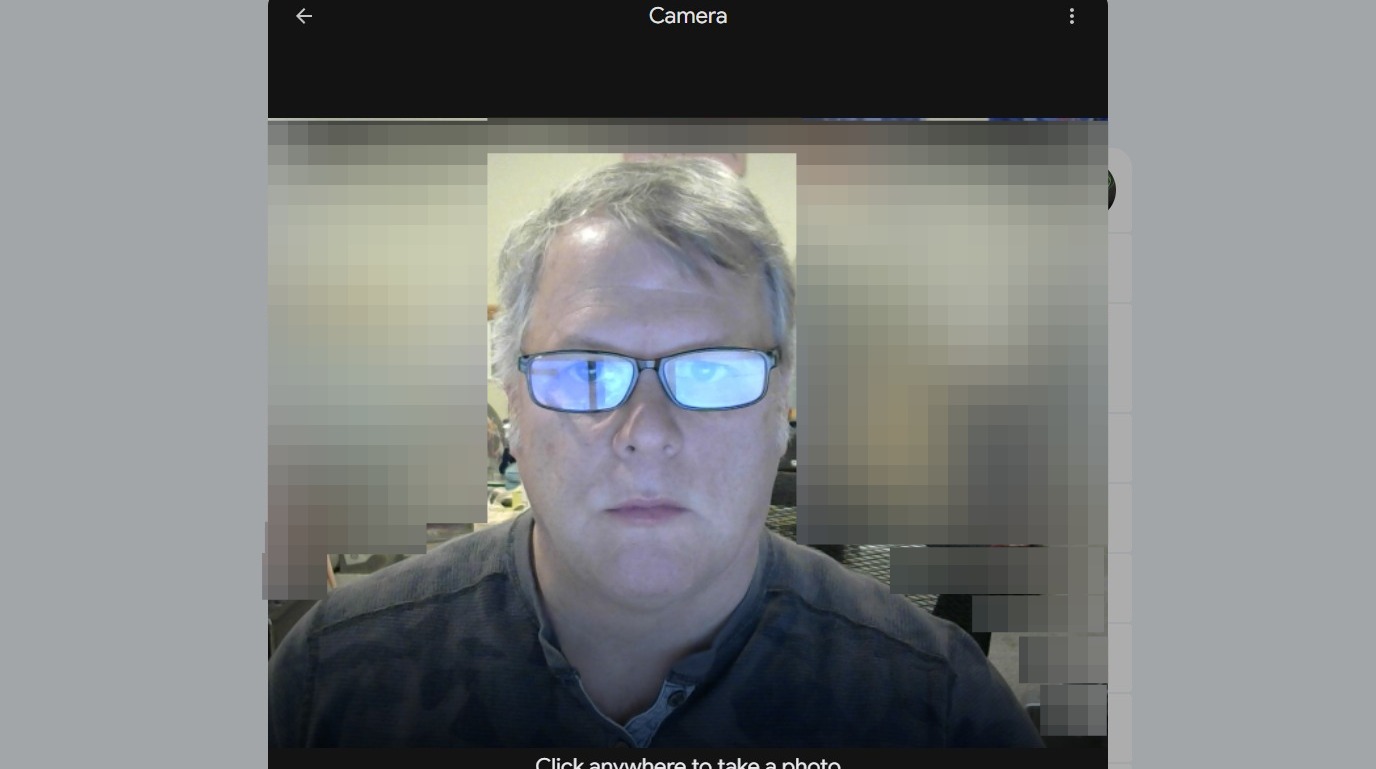
16. Click "Crop frame control"
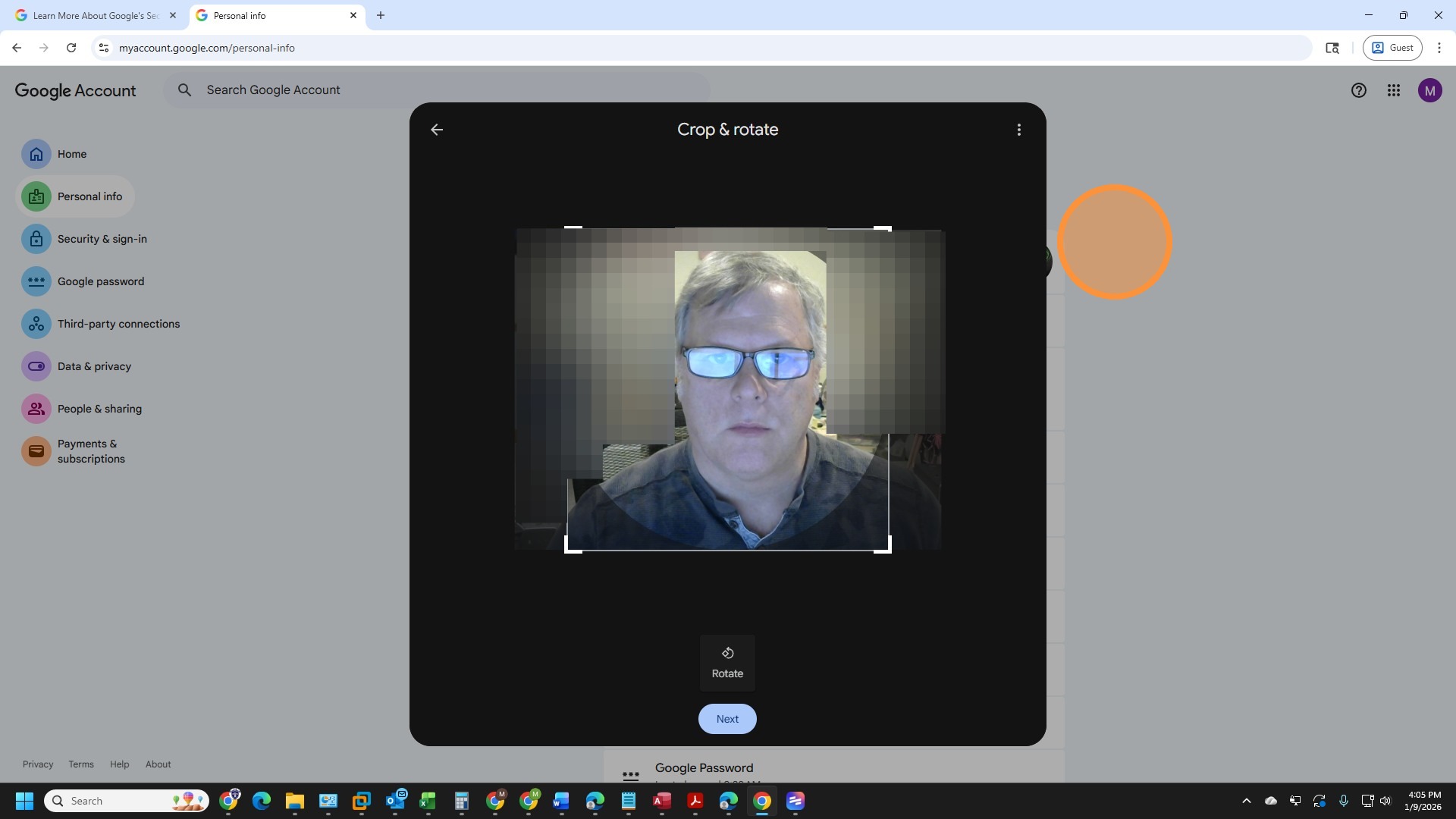
17. Once you are happy with the picture, click "Next"
18. Click "Save as profile picture"
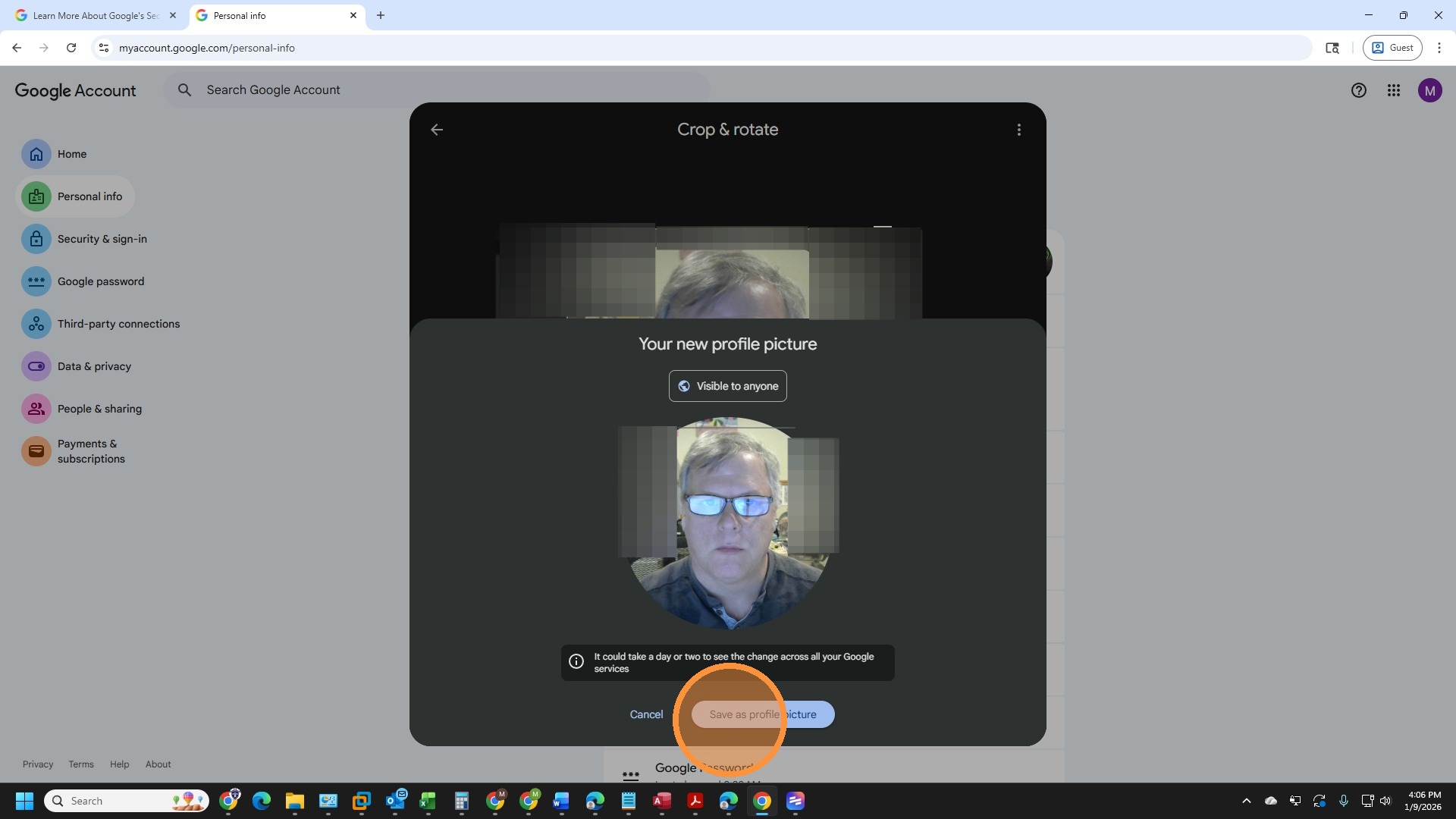
19. You have updated your profile picture
20. Step

Comments
0 comments
Please sign in to leave a comment.